To edit vertical video for Shorts, Reels and TikTok, set up a 9:16 project and work in four passes: trim, reframe, caption, export. Each pass does one job. You stop nudging captions while you're still deciding where the clip starts, and the whole edit moves faster.
This guide walks through each pass. Then it covers the export settings YouTube and Instagram actually publish, safe zones, and the mistakes that cost reach or quality. Every spec links to an official help page. Where a platform doesn't publish a number, we say so.
If your clips come from a long video, start with the complete workflow for turning long videos into shorts. This post picks up once you have a clip on the timeline.
The short version
- Edit in four passes, in order: trim, reframe, caption, export. Don't style captions until the cut is final.
- Set the project to 9:16. YouTube classifies square or vertical videos up to three minutes as Shorts.
- Keep clips to 3 minutes or less. Instagram won't recommend longer Reels to new audiences.
- Export one 9:16 MP4 and check it against YouTube's published encoding guide.
- Keep captions and faces out of the bottom of the frame. Meta's ad guidance is a useful rule of thumb.
- For TikTok, check the upload screen for your account's current limits.
Set up a 9:16 project before you cut
Start with the frame, not the footage. A 9:16 frame is the tall shape a phone shows full screen, and 1080x1920 is the common size for it. Setting it first means every trim and caption decision happens in the shape viewers will see.
The ratio also decides how YouTube files your upload. Its help page says videos "with a square or vertical aspect ratio up to three minutes" are classified as Shorts. That rule covers uploads from October 15, 2024 on. If you want a regular video instead, YouTube suggests a wider format such as 16:9 (YouTube Help).
Instagram is looser. Reels accept aspect ratios between 1.91:1 and 9:16, so a square or landscape clip will still upload (Instagram Help Center). But 9:16 is the tallest ratio it accepts, and it's the ratio that fills a phone screen in the Reels feed.
If you're starting from a long video, first let Magic Clips sort it. Go to Create → Long video → Find clips, then sort the review list by score. Each clip gets a hook score for its opening 1 to 3 seconds, with a plain-English reason. Treat the score as a starting point. You still make the final call.
In Hookspring, open the clip in the Editor and go to Focus → Layout. Pick 9:16, then choose how the source fills the frame:
- Fill: the source covers the whole vertical frame.
- Fit: the whole source shows, with space above and below.
- Blurred background: the source fits, and a blurred copy fills the gaps.
Pass 1: trim the hook tight
Your only job here is deciding where the clip starts and ends. Leave framing and captions alone until the cut is locked. Moving the start later shifts everything you placed after it.
Begin with the start point. Drag it forward to the first word that earns attention. A clip that opens on "so, um, basically" makes viewers wait for the point, so give them the point first. For help choosing that opening line, see how to pick the first word of a clip.
Here's an illustration, not a real quote. Say the raw clip opens: "So, um, I've thought about this a lot, and basically, I'd talk less in my first year of teaching." Trim the start to "I'd talk less in my first year of teaching." Now the clip opens on its point.
Then trim the end. Stop on the line that lands the point, not on the pause or the "anyway" after it. Ending on the strongest line is a good default.
Cut dead air inside the clip too. A long breath or a side story in the middle can drag as much as a slow start.
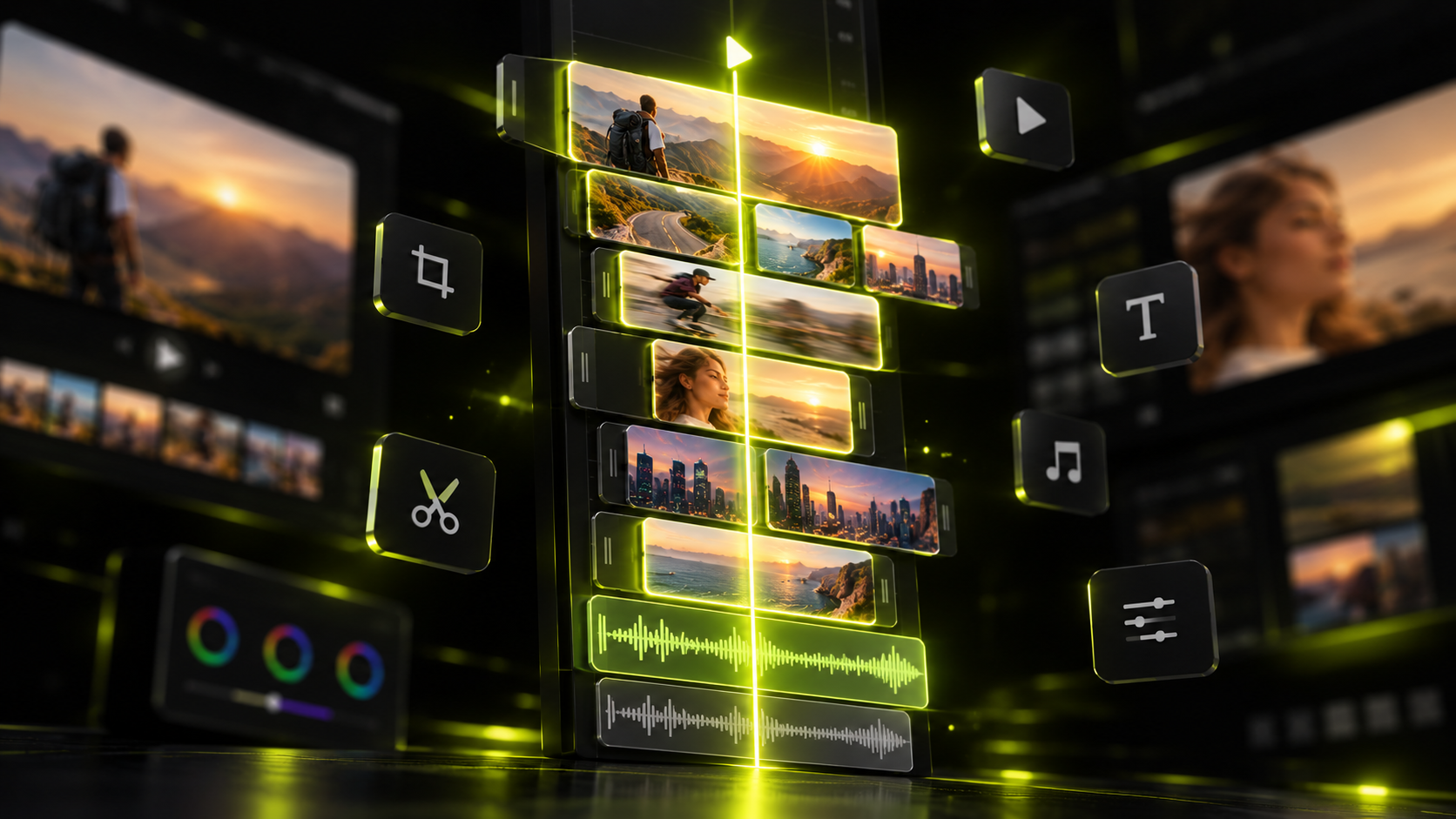
On Hookspring's timeline, the same cuts look like this:
- Drag the handles at either end of a clip to trim it.
- Split the clip where an unwanted section starts and ends, then delete the middle piece.
- Drag pieces to reorder them if a later line works better as the opener.
- Open Captions and click ✂ on a transcript line to cut by the words instead of the waveform.
A useful test: if the clip needs a sentence of setup to make sense, the hook is wrong. Pick a stronger moment instead of explaining a weak one. A short text overlay (Editor toolbar → Text) can add a little context, but it can't rescue a slow start.
Pass 2: reframe the subject
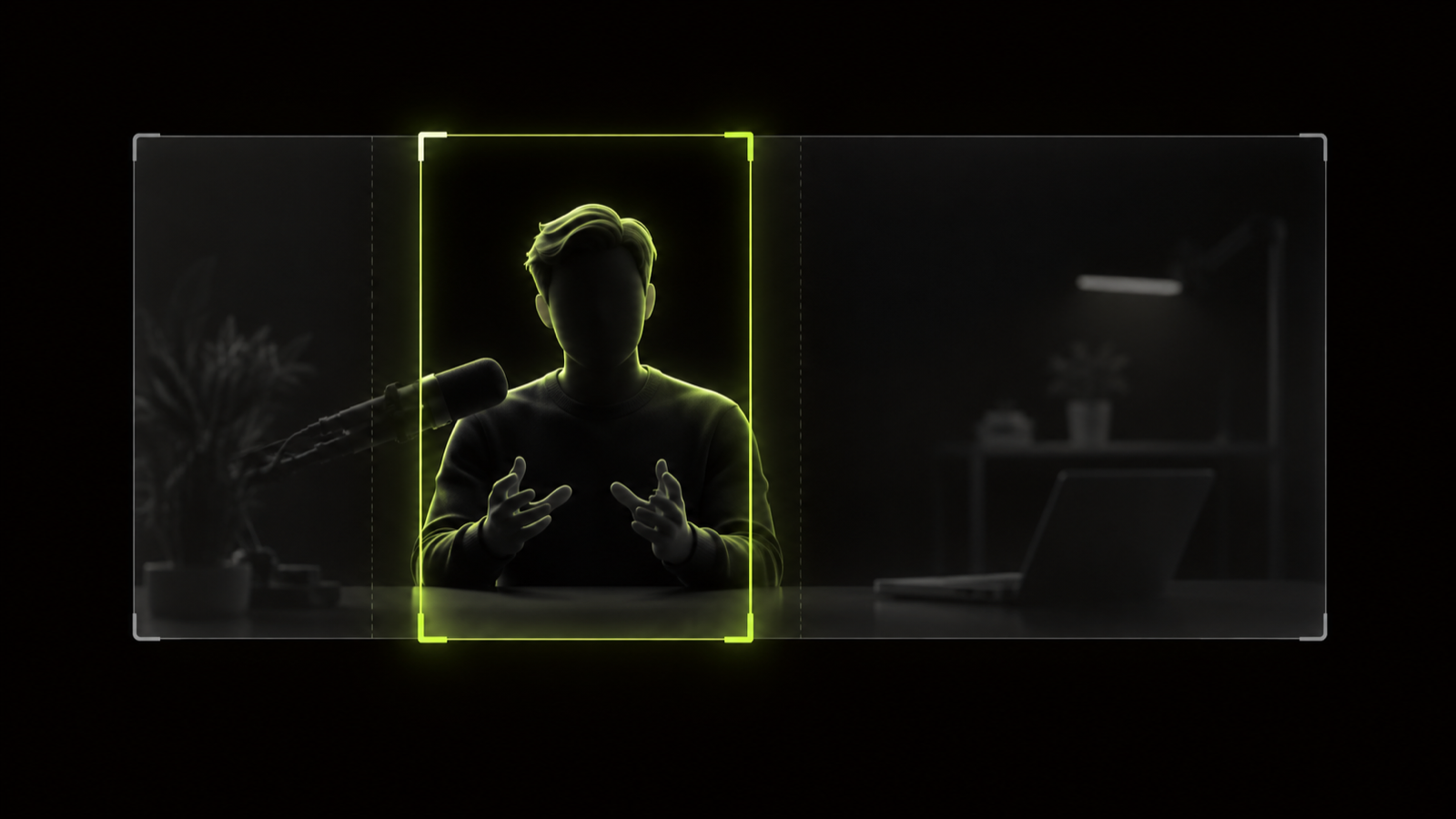
Now keep the person or the action inside the vertical frame for the whole clip. A 9:16 crop of a 16:9 shot keeps only about a third of the original width. A speaker who leans or walks can drift out of that slice fast.
A simple composition habit helps. Put the speaker's eyes in the upper third of the frame and keep them there. That leaves room lower down for captions without covering the face.
To reframe in Hookspring, drag the focus box on the stage onto your subject. The box stays on them and tracks them as they move, so you don't set keyframes by hand. For two speakers, or a face plus a screen share, go to Focus → Layout and pick a split layout. Splits go up to four parts.
Reframing has more options than one pass can cover. Crop, pad, split and subject tracking each suit different footage. The guide to converting horizontal video to vertical without losing the speaker explains when to use each, including two people in frame and slides.
Pass 3: caption for sound-off viewing
Captions let someone watching with the sound off follow the clip. Add them after the trim and framing are final, so you don't redo timing or position.
These habits keep captions readable:
- Use large words with strong contrast against the footage.
- Show a few words at a time, timed to the speech, never a paragraph.
- Keep captions out of the bottom of the frame, where app buttons and descriptions sit.
- Read every line once, and check names, brands and jargon closely.
Hookspring's Captions tab has three templates to start from: Hook, Minimal or News. Captions are timed word by word from the transcript, and you can edit any line. On export they're burned into the video, so they look the same on every platform.
Caption size, line length, style and per-platform placement deserve their own guide. Read captions for shorts: size, style, safe zones and timing for the details.
Pass 4: export once with the right settings
Finally, turn the edit into one clean MP4 that meets each platform's published guidance. YouTube publishes a detailed encoding guide, so it makes a sensible checklist for any editor you use.
| Setting | YouTube's recommendation |
|---|---|
| Container | MP4, with the moov atom at the front (Fast Start) |
| Video codec | H.264, High Profile, progressive scan, CABAC, 4:2:0 |
| Bitrate type | Variable bitrate |
| Frame rate | The same frame rate the video was recorded at |
| 1080p bitrate (SDR) | 8 Mbps at 24, 25 or 30 fps; 12 Mbps at 48, 50 or 60 fps |
| 720p bitrate (SDR) | 5 Mbps at 24, 25 or 30 fps; 7.5 Mbps at 48, 50 or 60 fps |
| Audio | AAC-LC (or Opus), 48 kHz, stereo at 384 kbps |
Source: YouTube's recommended upload encoding settings. The same page notes that the "player automatically adapts itself to the size of the video", so a vertical file plays as vertical.
In practice, most editors' H.264, High profile, VBR preset covers the codec rows; Fast Start is often a checkbox labelled optimize for web.
Keep the frame rate you recorded at
Frame rate is an easy setting to change without noticing. YouTube asks that video be "encoded and uploaded in the same frame rate it was recorded". If you shot at 30 fps, export at 30. Converting 30 fps footage to 60 doesn't add real motion detail.
Instagram lists minimums of 30 FPS and 720 pixels for Reels (Instagram Help Center). If you recorded at 30 or 60 fps, both rules line up. If you recorded at 24 fps, the two pages pull in different directions, so preview the upload on Instagram before you post.
Pick the highest resolution you have
Instagram's creator FAQ says to "Upload the highest resolution possible" (Instagram Creators). Between 720p and 1080p, pick 1080p when your source has it. If your source is only 720p, exporting at 1080p makes a bigger file, not a sharper picture.
Export in Hookspring
Hookspring's export takes three clicks: open Export, choose 720p or 1080p, and click Download. You get a vertical MP4 with captions burned in, rendered in your browser, with no watermark. That last part matters on Instagram, whose creator FAQ says third-party watermarks may reduce reach.
Run two quick checks before you click Download:
- Check levels per clip before export (Editor → Clip → Volume).
- Confirm Focus → Layout still shows 9:16.
YouTube Shorts vs Instagram Reels vs TikTok specs
YouTube and Instagram draw the same length line, as the table shows. TikTok is the one to check yourself.
| Platform | Aspect ratio | Length | Frame rate and resolution |
|---|---|---|---|
| YouTube Shorts | Square or vertical counts as a Short | Up to 3 minutes (uploads from Oct 15, 2024 on) | See the encoding table above |
| Instagram Reels | 1.91:1 to 9:16 | Record and edit up to 20 minutes; Reels over 3 minutes aren't recommended to new audiences | Minimum 30 FPS and 720 pixels; upload the highest resolution possible |
| TikTok | Check the upload screen | Check the upload screen | Check the upload screen |
Instagram's length rules come from two pages. Its Help Center says you can "record and edit videos up to 20 minutes". It also says "Reels over 3 minutes won't be recommended to new audiences" (Instagram Help Center). Its creator FAQ adds that only videos of 3 minutes or less are recommended to non-followers.
We couldn't verify TikTok's current limits from an official page, so we won't print numbers here. Check TikTok's upload screen for your account's current limits. For the full side-by-side, see short-form video specs for Shorts, Reels and TikTok.
One spec to ignore for organic posts: Meta's Reels ad spec lists 9:16 at 1440x2560, H.264 and a fixed frame rate. That's for ads only, not regular Reels (Meta Ads Guide).
Keep text and faces inside the safe zone
No platform publishes safe-zone numbers for organic posts. The closest official figures come from ad guidance, and they work well as a rule of thumb for any vertical clip.
Meta's ad guidance for Reels sets clear margins for text, logos and key elements. Keep "at least 14% of the top, 35% of the bottom, and 6% on each side" free. On a 1080x1920 frame, that works out to roughly:
- about 269 pixels at the top
- 672 pixels at the bottom
- 65 pixels on each side
Google's guidance for YouTube Shorts ads uses a 1080x1920 reference with a "safe area" for logos and text. It gives no numeric margins (Google Ads Help). It does show a like, comment and share panel on the right that overlaps the frame (Google Ads Help). So keep key details away from the right edge as well as the bottom.
In practice, that means captions sit in the middle band, above the bottom 35% (about 672 px on a 1080x1920 frame). The speaker's eyes sit in the upper third, below the top strip. Before you post, play the clip in each app's upload preview and look for anything hidden behind buttons.
Common vertical editing mistakes
Check for these before you upload. Several come from doing a pass out of order:
- Captioning before the cut is final. Every trim after styling means fixing caption timing again.
- Explaining a weak hook. If the clip needs setup, find a stronger opening moment instead.
- Leaving the face tiny. Fitting a full 16:9 shot into a 9:16 frame leaves a small face. It's hard to read on a phone. Crop in or track the subject.
- Putting text low in the frame. That's where usernames, descriptions and buttons sit in the apps.
- Ignoring the spec table above. Check length, frame rate and resolution against it before you export.
- Exporting 16:9 by accident. YouTube treats square or vertical uploads up to three minutes as Shorts, and suggests 16:9 for regular videos.
- Reposting another app's download. Instagram says third-party watermarks may reduce reach, so export a clean file.
Run the four passes in order on your next clip: trim, reframe, caption, export. Then check the upload preview once on each platform before you post.
FAQ
What size should a vertical video be?
Use a 9:16 aspect ratio. 1080x1920 is the common frame size. Instagram accepts Reels from 1.91:1 to 9:16 with a 720-pixel minimum, and asks for the highest resolution possible. YouTube classifies square or vertical videos up to three minutes as Shorts.
How long can a YouTube Short be?
A YouTube Short can be up to 3 minutes long. YouTube classifies videos with a square or vertical aspect ratio up to three minutes as Shorts. This applies to videos uploaded from October 15, 2024 on.
How long can an Instagram Reel be?
Instagram lets you record and edit Reels up to 20 minutes long. But Reels over 3 minutes won't be recommended to new audiences. If a clip is meant to reach non-followers, keep it to 3 minutes or less.
What frame rate should I export vertical video at?
Export at the frame rate you recorded at. YouTube's encoding guide asks for video "encoded and uploaded in the same frame rate it was recorded". Instagram lists 30 FPS as a minimum for Reels, so 30 or 60 fps footage fits both.
Do I need a separate file per platform?
Usually not for YouTube and Instagram. One 9:16 MP4 of 3 minutes or less, at the highest resolution you have and your recorded frame rate, fits both platforms' published guidance. For TikTok, check the upload screen for your account's current limits. Export a clean copy instead of reposting another app's watermarked download.
Written and maintained by the Hookspring team. Spot an error or something out of date? Email hello@hookspring.com.
Sources
- YouTube Shorts length and aspect ratio, YouTube Help, retrieved 2026-10-18
- Recommended upload encoding settings, YouTube Help, retrieved 2026-10-18
- Reels aspect ratio and resolution, Instagram Help Center, retrieved 2026-10-18
- Reels length and recommendations, Instagram Help Center, retrieved 2026-10-18
- Creators FAQ, Instagram, retrieved 2026-10-18
- Instagram Reels video ad specs, Meta Ads Guide, retrieved 2026-10-18
- YouTube Shorts ad safe area, Google Ads Help, retrieved 2026-10-18
- YouTube Shorts ads overlay guidance, Google Ads Help, retrieved 2026-10-18