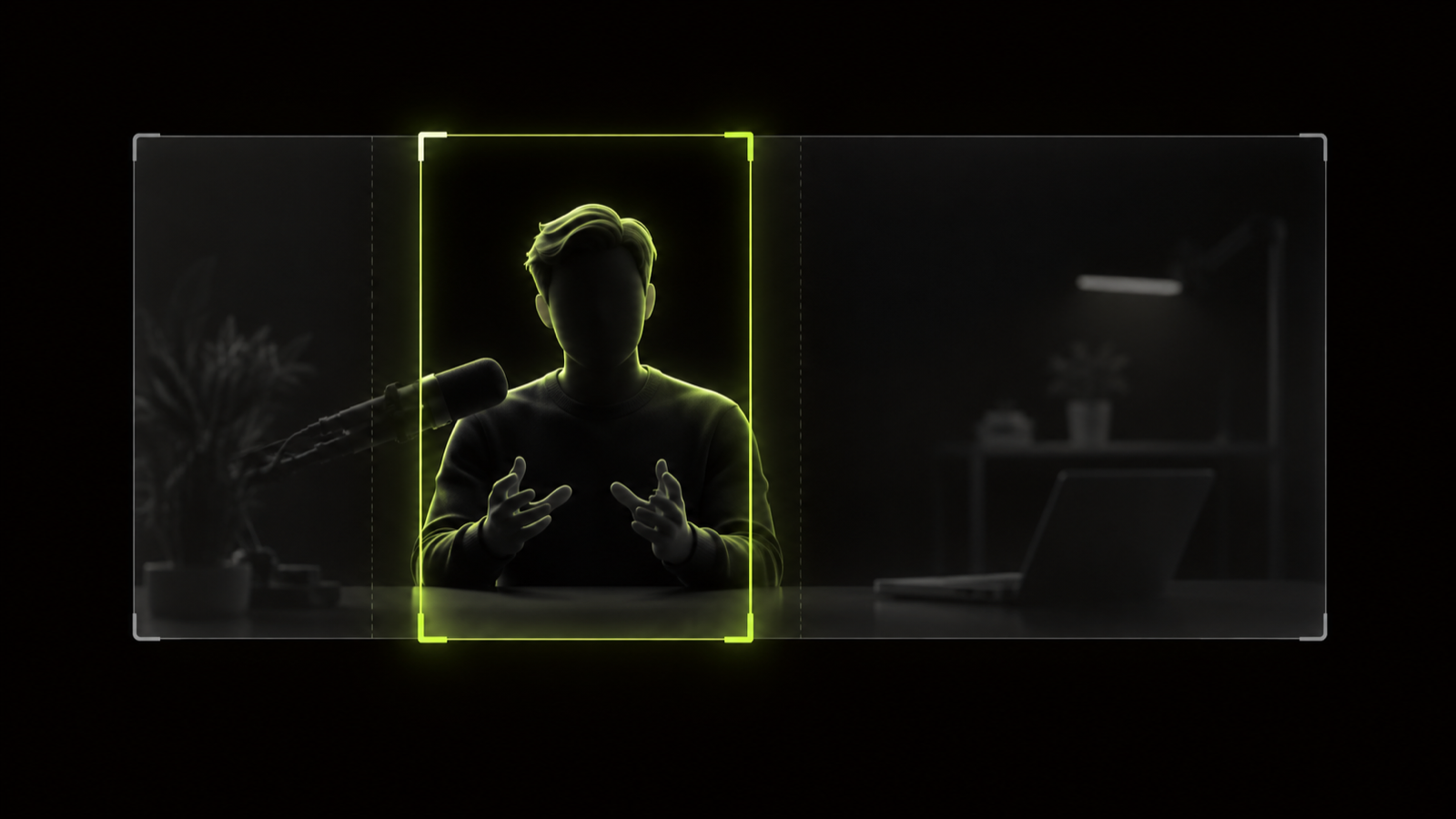
To convert horizontal video to vertical without losing the speaker, pick a method that fits the shot and keep the speaker framed. For one talking head, a 9:16 crop that tracks the speaker usually works. For slides, two people or wide shots, a fit, blurred background or split layout keeps what a crop would cut.
The hard part is width. A 9:16 slice of a 16:9 frame keeps only about a third of the original width. A speaker who leans, gestures or walks can slip out of that slice quickly, and a fixed center crop won't follow them.
If you're cutting clips from a long video, reframing is one step in the complete workflow for turning long videos into shorts. Everything below works on a single clip.
The short version
- Match the method to the shot: track one speaker, split two, and fit or blur slides and screen recordings.
- A 9:16 crop keeps about a third of a 16:9 frame's width, so a fixed center crop often cuts the speaker off.
- Keep faces and key text away from the bottom and edges. Meta's ad safe zones make a useful rule of thumb.
- Don't bake black bars into the file. YouTube advises against adding padding or bars to your video.
- Play the export on a phone before you post.
Crop, pad, split, track or blur: which method fits your shot
Choose by what the viewer has to see. A face survives a tight crop. A slide full of small text doesn't.
| Method | What it does | Use it when | Trade-off |
|---|---|---|---|
| Center crop | Cuts a fixed 9:16 slice from the middle | The speaker sits centered and stays still | About two thirds of the width is gone; anyone off-center disappears |
| Tracked crop | Moves the 9:16 slice to follow the subject | One speaker who leans, gestures or walks | Check the whole clip for drift or sudden jumps |
| Pad (fit with bars) | Shrinks the whole frame and fills above and below with a color | Every part of a wide shot matters | Small picture; bars baked into the file go against YouTube's advice |
| Blurred background | Fits the whole frame and fills the gaps with a blurred copy | Slides, screen recordings, wide demos | Same small picture, but the frame looks full |
| Split | Stacks two or more framed parts of the same video | Two speakers, or a speaker plus a slide | Each part gets less room |
The math behind the first row is simple. A full-height 9:16 slice of a 1920x1080 frame is about 607 pixels wide. That's 81/256 of the width, or roughly 32%.
Here's an illustration, not a real shoot. A coach stands at the left of a 16:9 frame, with a whiteboard on the right. A center crop shows her shoulder and a blank strip of board. A tracked crop keeps her face. A split puts her above the board, so viewers get both.
Keep the speaker in the safe area
Getting the speaker into the 9:16 frame is half the job. They also need to stay clear of the app's buttons, usernames and descriptions. Plan for the bottom and the edges of the frame to be covered.
Meta's ad guidance for Reels gives margins that work as a rule of thumb for any vertical clip. Its advice is to keep "at least 14% of the top, 35% of the bottom, and 6% on each side" free (Meta Ads Guide). Those figures are for ads, not organic posts. On a 1080x1920 frame they work out to roughly:
- 269 pixels at the top
- 672 pixels at the bottom
- 65 pixels on each side
A common framing habit is to put the speaker's eyes about a third of the way down the frame. That keeps the face below the top strip and leaves room for captions above the bottom 35%. Caption size and placement have their own rules, covered in how to edit vertical video for Shorts, Reels and TikTok.
How to reframe the speaker in Hookspring
In Hookspring, reframing happens in the Editor, after you've picked your clips. The steps:
- Get the clips from your long video with Create → Long video → Find clips. The credit cost shows before you start.
- Open a clip in the Editor and go to Focus → Layout. Pick 9:16.
- Choose how the source fills the frame: fill, fit or blurred background. Fit leaves empty space above and below, so blurred background avoids bars, which YouTube advises against.
- Drag the focus box on the stage onto the speaker. The box stays on them and tracks them as they move.
- Under Keep in frame, pick Follow face to track a face, or Aim by hand and click the subject on the preview.
- Play the clip from start to end and watch the edges of the frame.
Aim by hand is the fallback when there's no clear face, such as a product on a desk or a speaker turned away.
Two people in frame
Two people are where a single crop breaks down. In many two-shots, the speakers sit far enough apart that a third-width slice holds only one. You have three practical options.
- Split the frame. Stack the two speakers, one above the other. This suits quick back-and-forth.
- Cut between speakers. Split the clip where the talker changes, then aim each piece at whoever is speaking. This suits longer turns.
- Fit the wide shot. Use fit or blurred background when the moment depends on both reactions. Faces get small on a phone.
In Hookspring, go to Focus → Layout and pick a split layout. Splits go up to four parts. Then frame each part separately: select a part and choose Follow face or Aim by hand under Keep in frame. You can also split a clip on the timeline, so each piece keeps its own framing.
An illustration of the cut approach: a host asks a question for five seconds, then the guest answers for twenty. Split the clip where the guest starts. Aim the first piece at the host and the second at the guest.
Screen recordings and slides
Screen recordings and slides usually lose the most in a crop, because the content fills the whole width. A 9:16 slice of a slide often cuts words in half. Keep the whole frame visible instead.
- Blurred background fits the full slide into the frame and fills the space above and below. It's the simplest choice for a slide-only clip.
- Split puts the speaker in one part and the slide or screen in another. It works well when a talking head explains a chart.
- A square frame shows more of a wide slide than 9:16 does. YouTube counts square or vertical videos up to 3 minutes as Shorts (YouTube Help).
Instagram is looser. Reels accept aspect ratios from 1.91:1 to 9:16 (Instagram Help Center). So a square or 4:5 clip still uploads as a Reel, though it won't fill the phone screen.
Hookspring's Focus → Layout includes 9:16, 1:1, 4:5 and 16:9. For a slide clip, try blurred background at 9:16 first, then compare it with 1:1.
Don't add black bars yourself
Padding a video with black bars is a quick way to make it vertical. For YouTube, it's also the option to avoid. YouTube's help page on aspect ratio says the player "will automatically change to the ideal size" for your video (YouTube Help).
On computers, YouTube may add its own padding around vertical videos. That padding is white by default and dark gray in dark theme. YouTube's advice is to "avoid adding padding or black bars directly to your video".
If you want the whole frame visible, a blurred background or a split layout keeps the picture filled. Hookspring renders either one into the export, with no bars baked in.
Reframe tools in other editors
Several popular editors include automatic reframing. The details differ, so check your editor's own documentation before you rely on it.
- Final Cut Pro, Smart Conform. Apple says Smart Conform can "automatically reframe clips whose aspect ratio is different from the project aspect ratio". It analyzes faces and areas of interest. Choose Modify > Smart Conform, then fine-tune each clip with the Transform Position controls (Final Cut Pro User Guide).
- Adobe Premiere Pro, Auto Reframe. Premiere has an auto-reframe feature that creates a reframed sequence for a new aspect ratio.
- DaVinci Resolve, Smart Reframe. Resolve has its own reframing tool called Smart Reframe.
- CapCut, auto reframe. CapCut offers an auto reframe option too.
Whichever tool you use, treat automatic reframing as a first pass. Watch the full clip and fix any moment where the speaker drifts toward an edge.
The FFmpeg fallback: a crop from the command line
If you don't have an editor handy, FFmpeg can crop a horizontal video to 9:16 from the command line. Its crop filter takes four options: width, height, x and y. When you leave out x, it defaults to (in_w-out_w)/2, which centers the crop (FFmpeg Filters Documentation).
This command cuts a centered 9:16 slice at the source's full height:
ffmpeg -i in.mp4 -vf "crop=ih*9/16:ih" -c:a copy out.mp4Here ih*9/16 sets the width from the input height, and ih keeps the full height. The -c:a copy part keeps the audio as it is. A 1920x1080 source gives a frame about 607 pixels wide and 1080 tall. If you need a full 1080x1920 file, resize it in your editor afterward.
If the speaker sits off-center, set x yourself. This version starts the slice 200 pixels from the left edge, at the top of the frame:
ffmpeg -i in.mp4 -vf "crop=ih*9/16:ih:200:0" -c:a copy out.mp4Find the right x by checking where the speaker sits in a still frame. A fixed crop won't follow movement, so pick clips where the speaker stays put.
FFmpeg's pad filter can add bars instead, for example pad=iw:iw*16/9:(ow-iw)/2:(oh-ih)/2:black. That bakes bars into the file, which conflicts with YouTube's advice above. FFmpeg's overlay filter places one video on another at x and y positions. It's the building block for split and blurred-background layouts, but those filter chains take more setup than a quick fallback.
Export check before you post
Run through this list before you upload any reframed clip:
- The speaker's face stays inside the frame for the whole clip, including fast moves.
- No face or key text sits in the bottom 35% or tight against an edge.
- Slides and screen text are readable on a phone screen.
- The file has no black bars baked in.
- The aspect ratio is what you meant: 9:16 for a full-screen short, or square for wide slides.
Hookspring exports a 720p or 1080p vertical MP4, rendered in your browser, with captions burned in and no watermark (Editor → Export → Download). For length limits, resolution and file rules on each platform, check short-form video specs for Shorts, Reels and TikTok.
FAQ
Can I convert horizontal video to vertical without cropping?
Yes. Use a fit layout with a blurred background, or a split layout. Both keep the full width of the original frame visible. Avoid adding black bars to the file, since YouTube advises against padding your video yourself.
How do I convert 16:9 to 9:16 for free?
FFmpeg can do it with one crop command: crop=ih*9/16:ih centers a 9:16 slice at full height. In Hookspring, getting clips from a long video uses credits for transcription and hook scoring; reframing, captions and export after that are free.
Should I use black bars or a blurred background?
Use a blurred background. YouTube says to "avoid adding padding or black bars directly to your video", and its player adjusts to the video's size. A blurred background fits the whole frame and still fills the screen.
How do I fit two people in a vertical frame?
Use a split layout that stacks the two speakers, or cut between them as each one talks. A split suits quick back-and-forth. Cutting suits longer turns. Fitting the wide shot keeps both but makes faces small.
What size is a 9:16 video?
1080x1920 pixels is a common 9:16 frame size, but it isn't a platform rule. YouTube treats square or vertical videos up to 3 minutes as Shorts. Instagram Reels accept aspect ratios from 1.91:1 to 9:16.
Pick the method for your next clip from the table above, then play the export full screen on your phone before you post.
Written and maintained by the Hookspring team. Spot an error or something out of date? Email hello@hookspring.com.
Sources
- Smart Conform in Final Cut Pro, Apple Final Cut Pro User Guide, retrieved 2026-10-18
- FFmpeg Filters Documentation, FFmpeg, retrieved 2026-10-18
- Video aspect ratio and player size, YouTube Help, retrieved 2026-10-18
- YouTube Shorts length and aspect ratio, YouTube Help, retrieved 2026-10-18
- Reels aspect ratio and resolution, Instagram Help Center, retrieved 2026-10-18
- Instagram Reels video ad specs, Meta Ads Guide, retrieved 2026-10-18