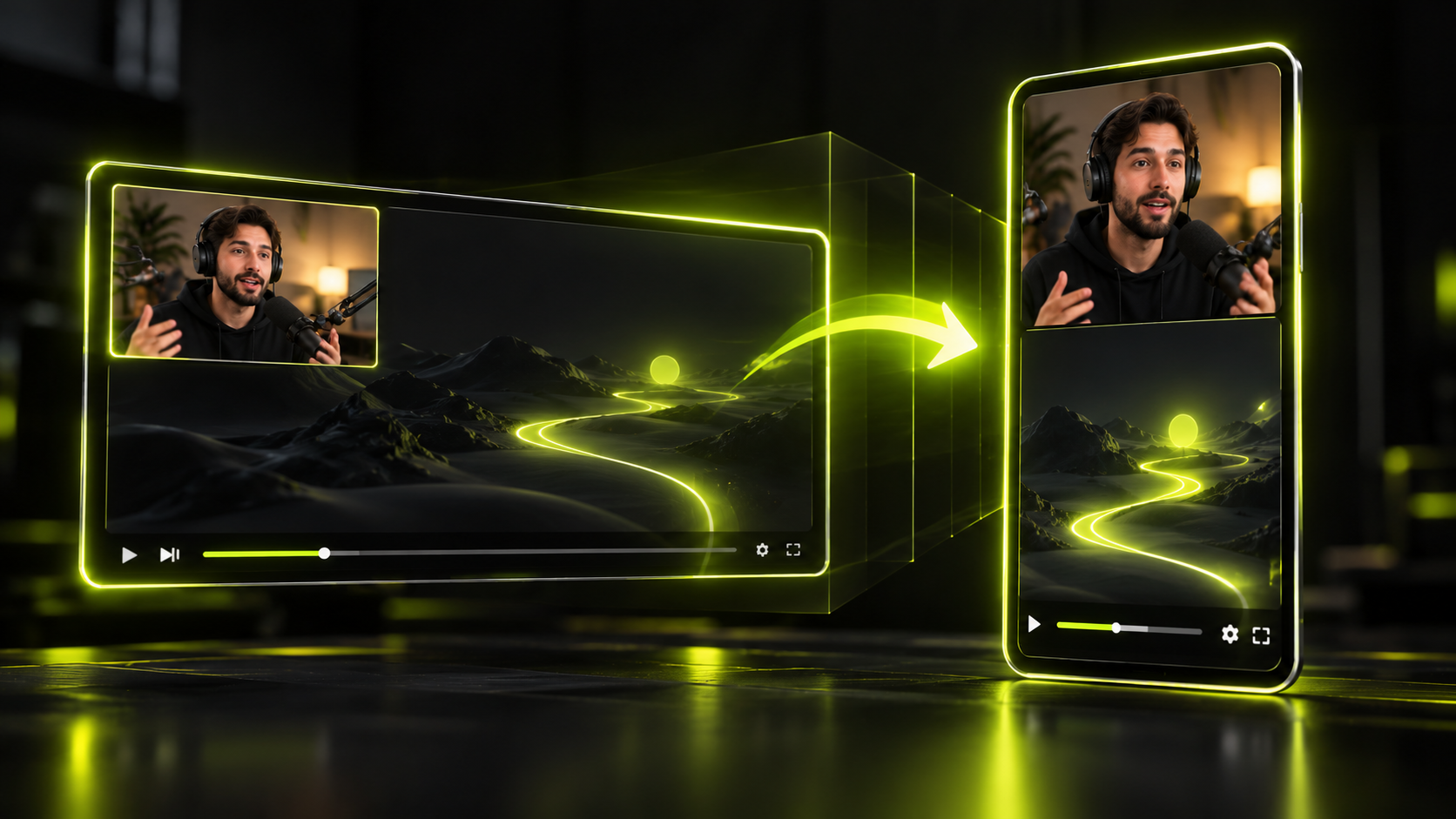
To turn long videos into shorts, transcribe the whole video and find the moments that open on a strong line. Cut each clip so it starts on that line. Then reframe it to vertical 9:16, add captions, export a vertical MP4 and post it with a link back to the full video. Finally, check how often viewers watched instead of swiping away, and let that guide your next picks.
Each step gives the method first, then the YouTube Studio route where one exists and the exact clicks in Hookspring. Steps 1 to 7 work for Shorts, Reels and TikTok alike. Steps 8 and 9 use YouTube Studio. YouTube says Shorts average over 200 billion daily views, a figure its CEO shared at Cannes Lions 2025 and repeated in the 2026 CEO letter. That's YouTube's own number, but the point stands: the feed isn't short on viewers. The bottleneck is how fast you get good clips into it.
The short version
- A clip works when it makes sense with zero context and opens on a line that makes a stranger want the next sentence.
- Start each clip on the exact word where the point begins, not on the warm-up before it.
- Keep the speaker in frame at 9:16, caption for sound-off viewing, and export a 1080p vertical MP4 with captions burned in.
- Link each Short to the full video with YouTube's Related Video setting, because URLs in Shorts descriptions aren't clickable.
- Only clip videos you own or have permission to use. Giving credit doesn't make a copy fair use.
What makes a long video clippable
A long video is clippable when it holds moments that stand on their own. Each good clip needs three things: one complete point, an opening line that hooks, and a subject you can frame vertically. If a moment is missing one of those, no amount of editing will fully save it.
Different formats hide their clips in different places:
- Podcasts and interviews: start with the answers. A guest's sharp answer to a clear question often works with almost no setup. Our guide on turning a podcast into shorts covers two-speaker framing and guest picks.
- Webinars and lectures: look for single explanations, definitions, and "here's the mistake most people make" moments. The guide to clipping webinars and lectures into shorts goes deeper on slide-heavy footage.
- Streams: the clips are reactions, wins, fails and chat moments, spread across hours of footage. See how to clip Twitch and YouTube streams into highlight shorts for where to look.
- Gaming with no talking: a transcript gives you little to work with, so you hunt for visual peaks instead. The guide to clipping gaming videos when nobody is talking covers that case.
Some moments look great in the long video and fall apart as clips. Watch for lines that lean on earlier context, like "as I said before." Inside jokes and points that need a chart on screen usually fail too.
How many shorts can one video give you? Count the moments that pass the three tests above, and that's your batch. A dense interview might give you a lot, and a rambling one might give you only a couple.
Step 1: Transcribe the whole video
Start with a transcript, because text is far faster to scan than video. You can skim an hour of talk on one page, search for keywords, and spot strong lines without pressing play. Timestamps then take you straight to each moment.
Word-level timestamps beat sentence-level ones. With a time on every word, you can start a clip on the exact word you want instead of somewhere near it. That matters a lot in Step 3.
The manual way. Run the video through any transcription tool that exports timestamps. Read it top to bottom with a highlighter, or a comment tool if you're in a doc. Mark every line that could open a clip.
Inside YouTube. This route works if the video is already on your channel. YouTube Studio's Clips and Shorts tool lets you pick a segment by highlighting transcript text or entering timestamps. The path is Content → the video → Clips and Shorts → Create clip or Short.
In Hookspring. Go to Create → Long video, upload the file or paste a YouTube link, then click Find clips. You'll see the cost in credits before you start. Transcription is word-level and automatic, and each step reports its progress while it runs. If a step fails, your credits are refunded.
Step 2: Find the hooks, not just the moments
A moment is something interesting that happens in the video. A hook is an opening that makes someone stop scrolling. You need both, but the hook decides whether anyone sees the moment at all.
One common mistake is picking the loudest or most energetic parts. Energy helps, but a shout with no context means little to a stranger. Here's a heuristic worth testing on your own clips: a quiet, surprising sentence can hold people better than a big laugh.
When you read the transcript, look for openings like these:
- A claim that sounds wrong at first: "Posting every day slowed my channel down."
- A direct question the clip then answers.
- A stake or a cost: what someone lost, risked or almost missed.
- A specific number or detail that only an insider would know.
- Disagreement between two speakers, stated plainly.
Then run each candidate through one test. Would this line make sense as the very first thing a stranger hears? If yes, it's a hook. If it needs the previous two minutes, it's only a moment. For a full breakdown of opening types, read our guide to hooking a short in the first three seconds.
Inside YouTube. The Clips and Shorts tool can suggest segments with AI, but only in select countries and languages, per the same Help page. Elsewhere, you pick segments yourself.
In Hookspring. Go to Review list → sort by score. Each clip is ranked by its opening 1 to 3 seconds and comes with a plain-English reason for its score. Treat the ranking as a shortlist, not a forecast. Read each reason, watch the opening, and drop any clip where the reason doesn't match what you see.
Step 3: Pick the start word
The start word is where the clip begins, and it should be the word where the point begins. Most long-form answers open with warm-up: "So, yeah, I think, honestly, the thing is..." Strangers in a feed won't sit through that. Cut it and start cold.
Here's an illustration, not a real quote. Say a guest answers, "That's a great question. I think, honestly, most people price their first product way too low." The clip should start on "Most people price." Everything before it is throat-clearing.
A few rules make this easier:
- Start on the first word of the point itself, not on "so," "and," "but" or "um."
- Watch for pronouns that point backward. If the line starts with "That's why," find what "that" means and start there.
- Leave a tiny breath before the first word so the audio doesn't clip mid-syllable.
- Read the first sentence alone. If it creates a question in your head, keep it.
Picking the first word is a skill of its own, especially for cold opens pulled from long-form. Our guide on how to pick the first word of a clip has more examples.
In Hookspring. Every word has a timestamp. To cut from the transcript, go to Editor → Captions and click ✂ on a line, then fine-tune the start with the timeline handles.
Step 4: Cut the clip
Once the start is set, trim the end so the clip stops right after the point lands. Don't trail into the next topic or the host's "yeah, totally." End on the payoff line, or one beat after it.
How long should it be? A YouTube Short can be up to three minutes long if it's square or vertical and uploaded on or after October 15, 2024. Desktop uploads in YouTube Studio follow the same 3-minute rule. That's a ceiling, not a target. Make the clip as long as the point needs and no longer.
Three length limits often get mixed up, so here they are side by side:
| Limit | Length | What it applies to | Source |
|---|---|---|---|
| YouTube Shorts | Up to 3 minutes | Square or vertical videos uploaded on or after Oct 15, 2024 | YouTube Help |
| YouTube Remix "Edit into a Short" | Up to 60 seconds | A section of your own public long-form upload, on mobile | YouTube Help |
| Video ads in the Shorts feed | First 60 seconds play | Ads only, per Google Ads guidance | Google Ads Help |
Inside the clip, cut dead air in the middle too. If a speaker wanders for ten seconds and comes back, split around the tangent and delete it. Keep cuts on sentence breaks so the audio sounds natural.
The vertical video editing workflow walks through the full edit pass in order, from trim to export.
In Hookspring. Use the timeline handles to trim each clip. You can split, delete and reorder parts on the same simple timeline. Each ranked clip is its own short, so edit them one at a time.
Step 5: Reframe to vertical 9:16
Most long videos are wide, and shorts are tall. Reframing means choosing what stays on screen when you crop a 16:9 frame down to 9:16. Usually that's the person talking.
Shorts can be square or vertical, but vertical fills the phone screen. Google's ads guidance puts it plainly: "Vertical videos, with a 9:16 aspect ratio, are best suited for the Shorts format" (Google Ads Help). That line is written for ads, but the screen is the same one your clip plays on.
You have three main options:
- Fill: crop in on the subject so they fill the tall frame. This is the default for one speaker.
- Fit: shrink the whole wide frame to fit inside the tall one. Use this only when the full wide shot matters, like a whiteboard or a game map.
- Split: stack two views, such as two podcast guests, or a facecam above gameplay.
Avoid plain black bars. YouTube's own guidance says to "avoid adding padding or black bars directly to your video" (YouTube Help). If you must fit a wide shot, a blurred background looks less empty than black. It's still a frame around your footage, though, so use it sparingly.
The manual way. In a desktop editor, you crop the frame and add keyframes every time the speaker moves. On a long clip with a restless guest, that's a lot of keyframes.
The guide to converting horizontal video to vertical without losing the speaker covers tracking, two-speaker shots and screen recordings.
In Hookspring. Drag the focus box on the stage onto your subject. It stays framed and tracked as they move. For other shapes, go to Focus → Layout and pick 9:16, 1:1, 4:5 or 16:9. Choose fill, fit or blurred background, or a split layout with up to four parts.
Step 6: Add captions
Caption every clip so it still works with the sound off and fast talk stays easy to follow. Words on screen in the first seconds can also back up your hook.
Good short-form captions share a few habits:
- Time them to the word, so text appears as it's spoken.
- Keep each line short, a few words at a time, not full sentences.
- Use large, high-contrast text that reads on a small screen.
- Keep text away from the edges where platform buttons and descriptions sit.
- Check every name, brand and technical term against the source before you export.
Exact sizes and safe zones vary by platform. Our guide to captions for shorts, from size and style to safe zones and timing, has the details.
You can also add a short text hook at the top of the screen. Think of it as a title that tells a scroller why to stay.
The manual way. Import the transcript as subtitles, then fix the timing and line breaks by hand. Style each clip to match.
Inside YouTube. The Clips and Shorts tool adds autocaptions from the transcript where available, per its Help page.
In Hookspring. Go to Editor → Captions tab and pick a template: Hook, Minimal or News. Captions are word-timed from the transcript, and you can edit any line. For a text hook, use Editor toolbar → Text.
Step 7: Export at the right settings
Export one vertical MP4 at 1080p with captions burned in. Burned-in captions are part of the video, so they show up the same way everywhere you post. That one file can usually go to YouTube Shorts, Instagram Reels and TikTok.
Each platform has its own length limits and upload rules, and they change. Before you post, check the current numbers in our short-form video specs for Shorts, Reels and TikTok.
A few export habits save headaches:
- Export at the highest resolution your source supports. Scaling a 720p source up to 1080p won't add detail.
- Watch the full export once before posting. Check the start word, the end and the captions.
In Hookspring. Go to Editor → Export, choose 720p or 1080p, then click Download. The video renders in your browser as a vertical MP4, captions burned in, with no watermark.
Step 8: Post the Short and link back to the full video
Post the clip, then connect it to the long video it came from. That link gives a viewer who liked the clip a one-tap path to the full episode.
On YouTube, a pasted link won't do it. "URLs placed in YouTube Shorts comments and Shorts descriptions are non-clickable," per YouTube Help. The clickable route is the Related Video setting.
Here's how to add it, per YouTube Help:
- Open YouTube Studio and go to Content.
- Select the Short.
- Open Related Video and pick a video from your own channel.
- Click Save.
The related video shows as a clickable link below your handle. There are two conditions. The feature is "only available with advanced feature access," and the target video must be public or unlisted.
If you made the Short with YouTube Studio's Clips and Shorts tool, the source video is added as the related video automatically. That doesn't happen for private, unlisted or Made for Kids Shorts.
Hookspring doesn't post for you yet. Scheduled publishing is on our Soon list, so you upload the exported file yourself.
Step 9: Measure and pick the next clips
The number to watch first is viewed versus swiped away. It's the share of times viewers chose to watch your Short instead of swiping past it. Views alone don't tell you whether the opening worked. A high viewed share is a strong sign your opening worked.
You'll find it in a Short's analytics in YouTube Studio. YouTube Help describes it as the "percentage of times that viewers viewed your Shorts versus swiped away." Our guide to reading viewed vs swiped away in YouTube Studio explains what the numbers mean and what to compare them against.
Then close the loop with a simple log:
- The clip's file name and the source video.
- The exact opening line.
- The hook type, such as claim, question, stake or number.
- The viewed versus swiped away share.
After a few batches, patterns show up. Maybe questions hold your audience better than bold claims. Use that when you pick from the next long video. Just don't judge a hook type on one clip, because one result is a data point, not a rule.
Manual vs YouTube Studio vs Hookspring
Hookspring is our product, so read this comparison with that in mind. All three paths can produce a good short. They differ in how much of the work you do by hand and what footage they accept.
| Task | Manual (desktop editor) | YouTube Studio tools | Hookspring |
|---|---|---|---|
| Source footage | Any file you have | Videos on your own channel; Remix needs your own public upload | Upload a file or paste a YouTube link |
| Finding moments | Watch or read everything yourself | Highlight transcript text or set timestamps; AI suggestions in select countries and languages | Ranked clip list from a word-level transcript |
| Judging the hook | Your own judgment | Your own judgment | Hook score from the opening 1 to 3 seconds, with a plain-English reason |
| Picking the start word | Scrub to the frame | Highlight transcript text | Cut from the transcript on a line; word timestamps for fine-tuning |
| Reframe to 9:16 | Crop and keyframe by hand | No documented reframe step | Click-to-focus box that tracks the subject, plus layouts |
| Captions | Import and fix by hand | Auto captions from the transcript, where available | Word-timed templates, editable line by line |
| Link back to full video | Add Related Video in Studio | Added automatically, with exceptions | Add Related Video in Studio after upload |
| Cost | Your editor and your time | Built into YouTube Studio | Free to start; credits only for transcription and hook scoring |
Manual fits when you already own a desktop editor, post a few clips a week, and want control over every frame. The cost is time, and it grows with video length, since you watch or read all of it.
YouTube Studio fits when the long video is already on your channel and you want the link back handled for you. It adds captions from the transcript where available. The Help page we cite doesn't describe a reframe step, so check framing in your own Studio.
Hookspring fits when you clip long videos often and the slow part is finding the moments. Editing, captions and export are unlimited, and credits are priced by video length, as the pricing page shows.
Clipping someone else's video: get permission first
Only clip videos you own or have permission to use. That holds for every tool in this guide, including ours.
Don't count on fair use to cover you. As YouTube explains, "courts decide fair use cases according to the facts of each unique case" (YouTube Help). The same page makes clear that crediting the original creator doesn't make a copy fair use.
Your safer routes are:
- Clip your own videos.
- Get written permission from the creator, and keep it.
- Join a clipping program where the creator grants clipping rights and sets the rules.
YouTube's own tools are strict here too. Remix "Edit into a Short" doesn't work on videos with third-party copyright claims. And pasting a YouTube link into any clipping tool is just a way to load the footage. It isn't permission to use it.
Our guide on whether clipping is legal, from permission and fair use to clipping programs, covers each route in detail.
FAQ
How long should a Short be?
A Short should be as long as its point needs. YouTube's limit is 3 minutes for square or vertical videos uploaded on or after October 15, 2024. Don't stretch a 25-second point to fill time. YouTube's mobile Remix tool caps clips at 60 seconds.
Can I make a Short from my own long video inside YouTube?
Yes, in two ways. In YouTube Studio, go to Content → the video → Clips and Shorts → Create clip or Short. On mobile, Remix with "Edit into a Short" takes up to 60 seconds of your own public upload. If that option is missing, turn on "Allow people to sample this content."
How do I link a Short to the full video?
Use the Related Video setting in YouTube Studio: Content → the Short → Related Video → Save. It needs advanced feature access, and the target must be public or unlisted. URLs in Shorts descriptions and comments aren't clickable.
How many Shorts can I get from one long video?
As many as pass three tests: the clip stands alone, it opens on a hook, and the subject can be framed vertically. There's no fixed number, and the density of good moments matters more than run time.
Do I have to make my video vertical for it to count as a Short?
No, a Short can be square or vertical. Vertical 9:16 fills the phone screen, and Google's ads guidance calls it the best fit for Shorts. Either way, don't bake black bars into the video.
Written and maintained by the Hookspring team. Spot an error or something out of date? Email hello@hookspring.com.
Sources
- Neal Mohan at Cannes Lions 2025, YouTube Official Blog, retrieved 2026-10-18
- The future of YouTube: 2026 CEO letter, YouTube Official Blog, retrieved 2026-10-18
- YouTube Shorts length and aspect ratio, YouTube Help, retrieved 2026-10-18
- Upload YouTube Shorts on desktop, YouTube Help, retrieved 2026-10-18
- Create clips and Shorts in YouTube Studio, YouTube Help, retrieved 2026-10-18
- Edit your long videos into Shorts with Remix, YouTube Help, retrieved 2026-10-18
- Add a related video to your Shorts, YouTube Help, retrieved 2026-10-18
- Links in Shorts descriptions and comments, YouTube Help, retrieved 2026-10-18
- Video resolution and aspect ratios, YouTube Help, retrieved 2026-10-18
- Vertical video ads in YouTube Shorts, Google Ads Help, retrieved 2026-10-18
- Fair use on YouTube, YouTube Help, retrieved 2026-10-18
- YouTube Shorts analytics, YouTube Help, retrieved 2026-10-18