To clip gaming videos into shorts when nobody is talking, start with capture. Save the moment with your PC or console's replay tool. Then find the peak by sound and on-screen events, and cut tight around it. Frame the action for 9:16 and add a text hook. Speech-based clip pickers have little to grab onto here, so picking the moment is your job.
This guide fills in the gameplay gaps in our complete workflow for turning long videos into shorts. Every step works the same for YouTube Shorts, TikTok and Instagram Reels.
The short version
- Speech-based clip picking, including Hookspring's hook score, has little to read when nobody talks. Find gameplay peaks yourself.
- Save moments as they happen. NVIDIA Instant Replay keeps the last 30 seconds, and a PS5 can save from the last 15 seconds up to 1 hour.
- Look for peaks in audio spikes, the kill feed, round ends and game event markers.
- A silent clip needs an on-screen text hook from the first frame.
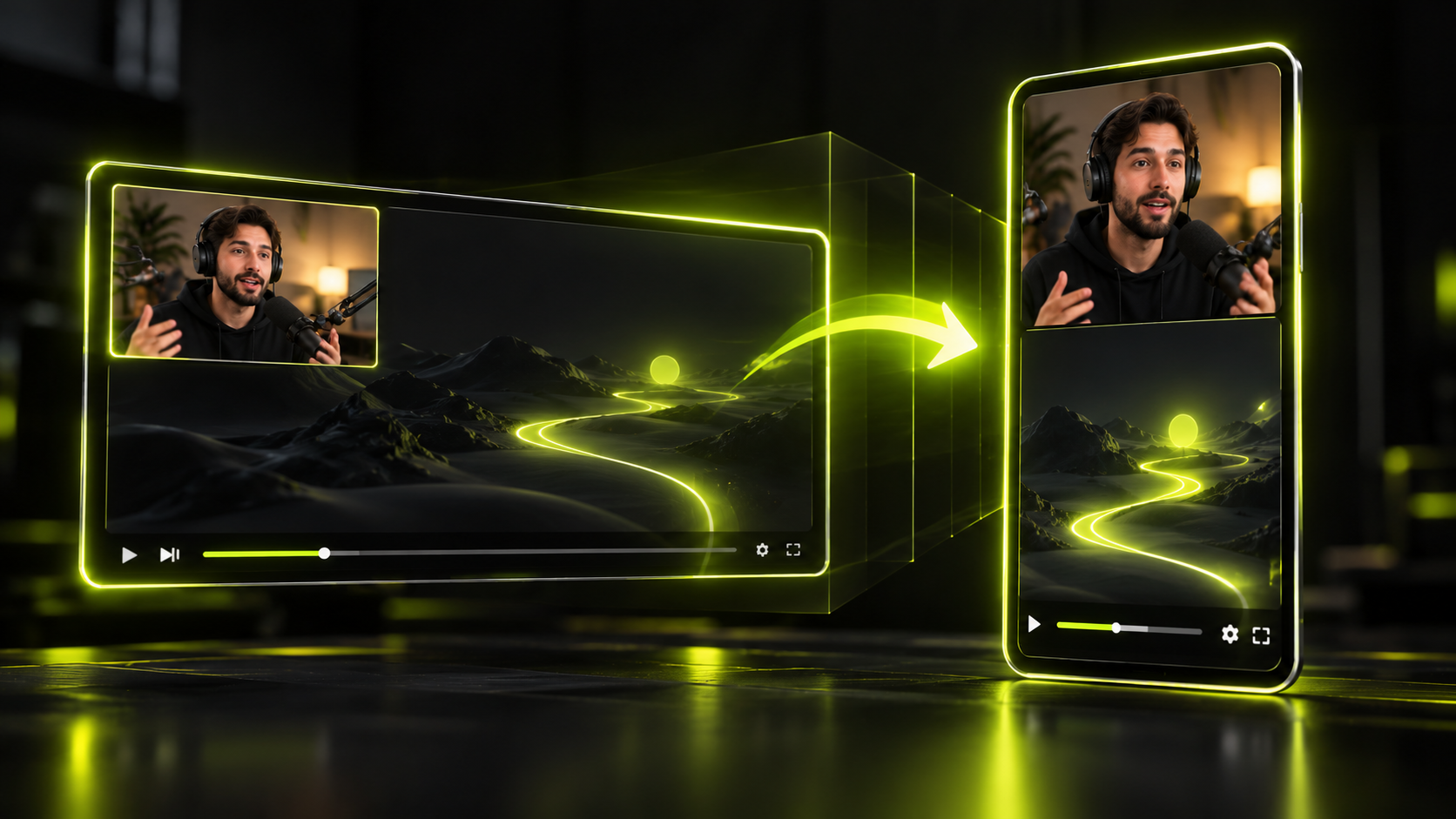
- Frame the action, not the whole HUD. Facecam on top with gameplay below suits reaction clips.
- Caption key sounds with text, mute licensed game music, and check each publisher's rules before you monetize.
Why speech-based picks miss gameplay
Most auto-clippers pick moments from what people say. They read the transcript, look for a strong opening line, and rank clips by it. A silent ace or a clean speedrun skip gives them almost nothing to read.
Hookspring works this way too. Its hook score ranks each clip by its opening 1 to 3 seconds, with a plain-English reason, and that ranking leans on speech. On footage with commentary, it gives you a useful shortlist. On pure gameplay, the score has little to go on, so don't rely on it to pick gameplay moments.
A gameplay clip lives on what you see and hear: the shot, the explosion, the score change, the victory sting. A transcript can't see any of that. So in this workflow you pick the moments, and the editor handles the slow parts: cutting, framing and text.
If you narrate some sessions, those are worth scoring. Run them through Create → Long video → Find clips, then sort the Review list by score. The credit cost, priced by video length, shows before you start.
Capture the moment first
The easiest clip to edit is the one you saved while it happened. Every major platform has a replay or recording tool. Turn it on before you play, and you'll scrub far less later.
NVIDIA app (ShadowPlay)
On a PC with an NVIDIA card, NVIDIA's ShadowPlay page says Instant Replay can "instantly save the last 30 seconds of gameplay." Its Highlights feature "automatically captures key moments, clutch kills, and match-winning plays." That only works in supported games, so check that yours is one.
PS5
PlayStation's capture guide says you can save "anywhere from the last 15 seconds up to 1 hour" of recent play. You can also "record up to 1 hour of gameplay." One catch: "Some scenes are blocked," so a game may stop you capturing certain moments.
Windows Game Bar and Xbox
Game Bar comes with Windows. Dell's Game Bar guide lists Win+Alt+G or Win+Alt+R to start or stop recording. Recordings save as MP4 files in Videos > Captures.
Xbox consoles have a "Record what happened" option that saves a moment you just played. We couldn't confirm how far back Game Bar or Xbox can save. Check the capture settings on your device.
Steam Game Recording
GamingOnLinux reported in November 2024 that Steam Game Recording had left beta. It records in the background or on demand, and you can clip inside the Steam client. Games can add "special markers" to the recording timeline. It also works with non-Steam games and on Steam Deck. Check Steam's settings for how much footage it keeps.
Find the peaks without a transcript
With no words to search, you find peaks with your eyes and ears. A few signals do most of the work:
- Audio spikes. Loud moments show up as tall peaks in a waveform, so scrub to those first. Loud doesn't always mean good, though. An explosion during a loading screen is still dead air.
- The kill feed. In shooters, names stacking up in the corner mark a multi-kill. Scan the feed instead of watching the whole match.
- Round and match ends. Victory screens, scoreboards and final circles make natural endings. Work backward from them to find the play that won it.
- Game event markers. NVIDIA Highlights and Steam's markers flag moments for you in games that support them. Start your review there.
- Your own notes. Jot a timestamp when something good happens. It's faster than hunting for it later.
If you stream, chat spikes and stream markers add more leads. Our guide to clipping Twitch and YouTube streams covers those signals.
Here's what a peak log might look like for a 40-minute match recording (an illustration, not a real session):
- 06:12 waveform spike, grenade triple kill in the feed
- 19:40 quiet 1v2 clutch, round win banner
- 38:55 final circle, victory screen
The 1v2 clutch has no audio spike at all. A waveform points you to leads, but your eyes make the call.
Once you have a peak, cut it tight. Start a beat before the play and end on the result.
To edit a recording, start it with Create → Long video → Find clips. The cost shows first. On silent footage, work from your own peak log, not the candidates. Then, in the Hookspring editor:
- Open the clip's Volume panel (Editor → Clip → Volume) and check its waveform to see where the loud moments sit before you trim.
- Drag the timeline handles so the clip starts just before the play.
- Split at the result screen and delete anything after it.
Write a text hook for silent clips
A silent clip has no opening line, so the screen has to supply one. Put a short text hook on screen from the first frame. It tells a scrolling viewer what to watch for.
Strong gaming hooks name the stakes or the odds. Keep each one short enough to read at a glance. A few patterns, written as illustrations:
- "1 HP. 3 enemies left."
- "Watch the top left corner"
- "He didn't see the second trap"
- "The skip that saves 4 minutes"
Avoid hooks that give away the ending. "I won the 1v3" spoils it. "1v3, no shields" makes people stay to see how it plays out.
In Hookspring, add the hook with Editor toolbar → Text. Place it above the action and keep it clear of the HUD. You can also add a second text line for the payoff, like "no way" or the final score. For more patterns, see our guide to on-screen text hooks.
Frame the action in 9:16
A 16:9 gameplay frame loses most of its width when you crop it to 9:16. Decide what the clip is about before you crop. Usually that's the action in the center, plus one HUD element the viewer needs.
Most HUDs sit in the corners: minimap, ammo, health, kill feed. A center crop cuts them off. That's fine when the action speaks for itself. It's a problem when the payoff is a number in the corner.
| What the clip needs | Layout to use |
|---|---|
| The play itself | Single frame, fill, focus box on the action |
| The play plus the kill feed | Two-part split: kill feed area on top, action below |
| Your facecam reaction | Two-part split: facecam on top, gameplay below |
| A strategy view or wide map | Fit with a blurred background |
In Hookspring:
- For one subject, drag the focus box onto the action on stage. It stays framed and tracked.
- For more than one, go to Editor → Focus → Layout and pick a split. Splits go up to four parts.
- Drag the focus box inside each part to set what it shows.
- Play the clip through and check that nothing important slides out of frame.
Leave room for your text hook and captions so they don't cover the action. For more reframing options, see how to convert horizontal video to vertical.
Caption the sound, not just the speech
Assume some viewers have the sound off. If the payoff is a sound, they'll miss it unless it's on screen.
Caption key sounds the way subtitles often do, in brackets: [headshot], [glass shatters], [crowd roars]. Pick only the sounds that matter to the moment. A bracket for every footstep turns into clutter.
Hookspring's captions are word-timed from the words spoken. A clip with no talking has little to caption, so add the key sound as a text line with Editor toolbar → Text. If the payoff has its own sound, add a second text line for the payoff.
If the clip has some talking, open the Captions tab and pick Hook, Minimal or News. Then read every line, and fix game terms, player names and callouts as you go. Captions are editable line by line. Our guide to captions for shorts covers size, safe zones and timing.
Music and publisher rules
Gaming clips carry two sets of rights: the game's own content and any music in it. This section is general information, not legal advice. Each publisher's own rules for its games come first.
Game music
Some game soundtracks are licensed from third parties. Microsoft's Game Content Usage Rules say it doesn't "always have the rights to pass them on." On YouTube, Content ID matches run automatically. The rights owner can then block, monetize or track your video.
Longer Shorts carry more risk. Per YouTube Help on Shorts length, a Short over 1 minute with an active claim is blocked worldwide. YouTube adds that there are "no penalties to your channel."
The safest move is to mute licensed in-game music. In Hookspring, go to Editor → Clip → Volume and mute or lower the clip. That also removes game sound effects, which is one more reason to caption key sounds. Music and sound effects in Hookspring are coming soon.
For a backing track, the YouTube Shorts Audio Library avoids claims. It allows "up to 90 seconds of music in your 3 minutes Short," depending on the song.
Nintendo
Nintendo's Game Content Guidelines, updated September 2, 2024, ask for "creative input and commentary." Plain copies of game footage aren't covered by the permission, except clips made with the Capture Button. A stream with no creative input isn't allowed.
You can monetize through approved programs, including the YouTube Partner Program, Twitch Affiliate and Partner, and Meta's partner monetization. You may not sell the videos. In our reading, a raw clip with no edit, text or commentary sits close to that plain-copy line.
Microsoft
Microsoft's rules are dated January 2015 and were the live page when we checked. They let you "earn revenue from ads displayed in connection with your Item." You can't put the video behind a paywall. You must say it "is not endorsed by or affiliated with Microsoft" and credit © Microsoft.
Riot Games
Riot's Legal Jibber Jabber page, dated August 2018, allows ads and sponsor overlays. It also allows donations or subscriptions on live streams, and it says "No inappropriate ads." Projects need original content, not "light commentary" on other players' VODs.
Epic Games
Epic publishes its own fan content policy. We couldn't load it to confirm the details, so check the current policy before you post or monetize clips of Epic's games.
Clipping someone else's gameplay raises its own questions. For permission, fair use and clipping programs, read is clipping legal?
Post the clip
Export once, then post the same file wherever you publish. The steps above work the same for TikTok, Instagram Reels and YouTube Shorts.
- Go to Editor → Export → Download. Pick 720p or 1080p for a vertical MP4 with captions burned in and no watermark.
- Name the game and the moment in your title or caption, so people looking for that game can find it.
- Add any credit line the publisher asks for, such as Microsoft's disclaimer.
- On YouTube, if the clip uses claimed music and runs over 1 minute, trim it or remove the music.
Keep a list of the peaks you didn't use. That backlog keeps you posting in weeks when you barely play.
FAQ
How do I clip the last 30 seconds on PC?
With an NVIDIA card, use Instant Replay in the NVIDIA app, which saves the last 30 seconds of gameplay. Windows Game Bar can also record, and files land in Videos > Captures. Check Game Bar's settings for how far back it saves.
How do I clip on PS5 or Xbox?
On PS5, save anywhere from the last 15 seconds up to 1 hour of recent play, or record up to 1 hour. Some scenes are blocked. On Xbox, use "Record what happened" to save a moment you just played.
Can I monetize gameplay clips?
Often, within each publisher's rules. Nintendo approves programs like the YouTube Partner Program but doesn't let you sell the videos. Microsoft allows ad revenue with a disclaimer, and Riot allows ads and sponsor overlays. This isn't legal advice.
Can I use game music in Shorts?
Be careful. Some soundtracks are licensed from third parties, and Content ID can claim them. A claimed Short over 1 minute is blocked worldwide. Mute the music, or use the Shorts Audio Library instead.
What makes a good gaming Short with no commentary?
A clear peak, a tight cut and a text hook. Start just before the play and end on the result. Frame the action for 9:16, and caption the sounds that matter.
Written and maintained by the Hookspring team. Spot an error or something out of date? Email hello@hookspring.com.
Sources
- ShadowPlay: Instant Replay and Highlights, NVIDIA, retrieved 2026-10-18
- Capture PS5 gameplay and screenshots, PlayStation Support, retrieved 2026-10-18
- How to use the Windows 10 Game Bar to capture video from applications, Dell Support, retrieved 2026-10-18
- Steam Game Recording has officially launched, GamingOnLinux, retrieved 2026-10-18
- Game Content Guidelines for Online Video and Image Sharing Platforms, Nintendo, retrieved 2026-10-18
- Game Content Usage Rules, Microsoft, retrieved 2026-10-18
- Legal Jibber Jabber, Riot Games, retrieved 2026-10-18
- Fan Content Policy, Epic Games, linked 2026-10-18 (page did not load)
- Use music in Shorts, YouTube Help, retrieved 2026-10-18
- Shorts length, YouTube Help, retrieved 2026-10-18
- How Content ID works, YouTube Help, retrieved 2026-10-18