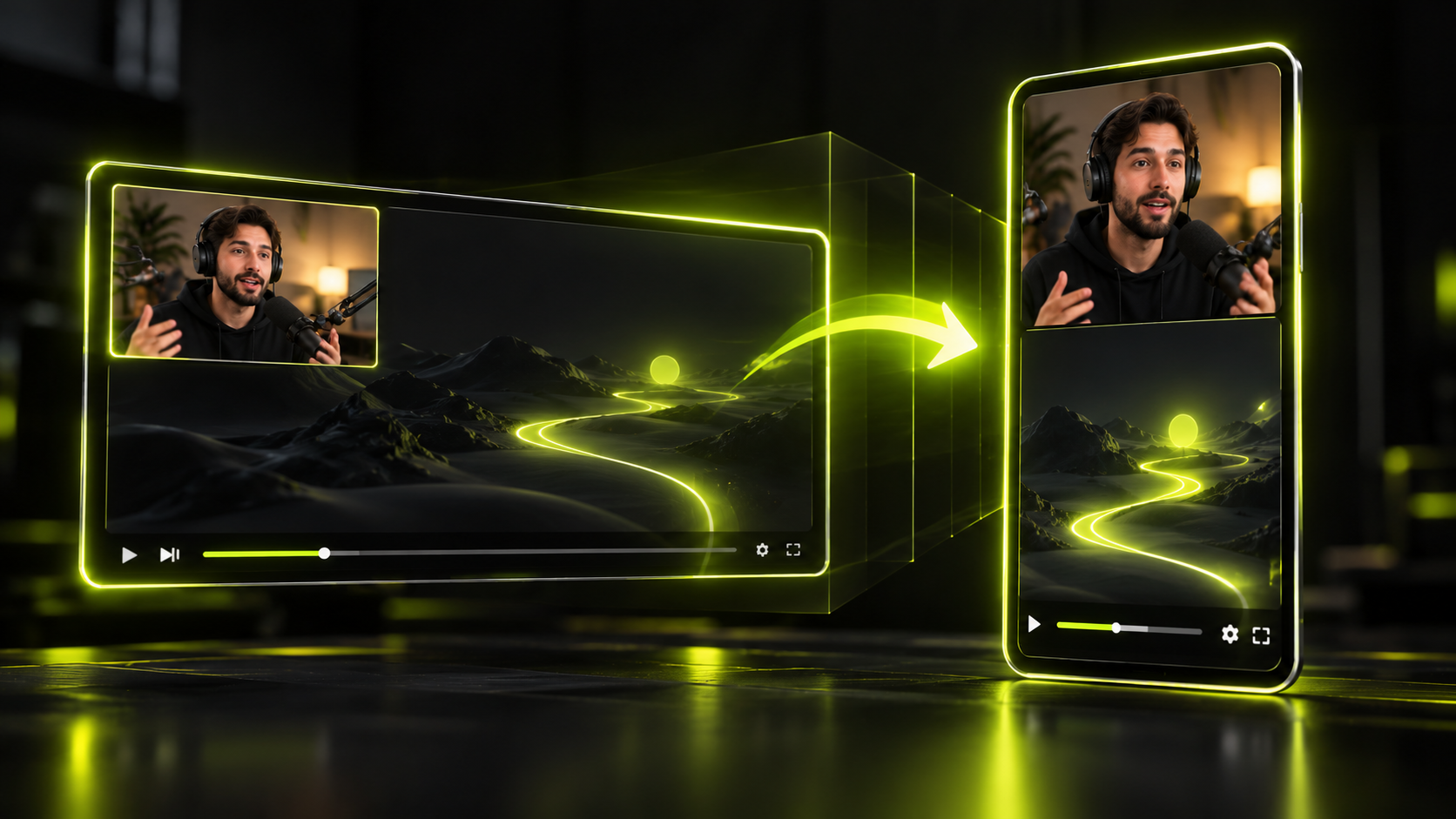
To repurpose a webinar into short videos, choose the recording layout before the session starts. Afterward, download the file and find moments that teach one thing without context. Frame the slide and the speaker in 9:16, add a text hook and captions, and point each clip back to the full session. The same method turns lecture clips and course video into shorts.
Webinars differ from other long videos in two ways. Half the message often lives on a slide, and the best moments tend to lean on what came before. This guide focuses on those two problems. For the general method, see our complete workflow for turning long videos into shorts. The editing steps work the same whether you post to YouTube Shorts, TikTok or Reels.
The short version
- In Zoom, set the cloud recording layout in the web portal before the meeting. Changes after it starts don't apply.
- In Teams, only the organizer can download the recording, and captions aren't captured in it.
- A good clip teaches one thing and makes sense to someone who missed the first 40 minutes.
- Use a split layout when the point depends on the slide, and a single frame on the speaker when it doesn't.
- Add a text hook for context, then check captions for jargon line by line.
- Get a written OK from guest speakers, and ask before clipping attendees who are visible or named.
Before the session: pick the recording layout
The layout you record decides what you can frame later. If the file only shows the shared screen, you can't put the speaker's face in a clip. Decide this when you schedule the webinar, not after.
Zoom offers several cloud recording layouts, according to Zoom Support:
| Zoom option | What the file shows | Good for |
|---|---|---|
| Speaker view | The person talking | Talking-head clips |
| Gallery view | Participants in a grid | Panel discussions |
| Shared screen with active speaker | The slide, with the speaker's tile in the top-right corner | Slide plus speaker clips from one file |
| Record active speaker, gallery view and shared screen separately | Each view as its own file | Keeping every option open |
Two settings matter most. The speaker tile on a shared screen needs "Record tiles when sharing" turned on. Separate files need "Record active speaker, gallery view and shared screen separately." Set both in the Zoom web portal before the meeting, because changes made after the start don't apply.
Cloud recording also needs a Pro, Business or Enterprise account, as Zoom's guide to finding recordings explains. If you're unsure which layout you'll need, we recommend separate files. You get a clean speaker file for talking-head clips and a clean slide file for demos.
Google Meet works differently. Google Meet Help says "video recordings include the active speaker and anything presented." An admin must turn recording on, and a recording stops at 8 hours.
Get the recording file
Each platform puts the file in a different place, and each has its own limits. Download the file soon after the session, so an expiry date or a missing permission doesn't catch you later.
Zoom
Go to Recordings & Transcripts, click the recording's thumbnail, then click Download and confirm. The steps are in Zoom's download guide. If a co-host recorded, the file appears only in the host's list. Deleted recordings sit in the trash and can be recovered for 30 days.
Microsoft Teams
Microsoft Support is clear: "Only the meeting organizer can download the meeting recording." Open the Shared tab, choose More options, then Download. The file is an .mp4. Recordings expire on a schedule your admin sets, so don't wait.
Google Meet
The recording saves to the organizer's Google Drive. Open it there, choose More, then Download.
Load the recording into Hookspring
With the file downloaded, start the clip search:
- Go to Create → Long video → Find clips.
- Upload the recording, or paste a YouTube link if the session is already public.
- Check the credit cost, which is shown before you start, then confirm.
- Follow the progress as each step runs. A word-level transcript is built automatically, with every word timestamped.
Pick standalone lessons
A webinar clip works when a stranger learns one thing from it with no context. Expect to skip large parts of a session. Agendas, housekeeping, polls and "as you can see on this slide" all depend on being in the room.
Good places to look:
- A term or idea defined plainly in one or two sentences
- A common mistake, followed by the fix
- A short demo that ends with a visible result
- An audience question answered in full
- A framework or checklist the speaker sums up in one breath
- A strong opinion the speaker backs with a reason
Don't chase the loudest moment. Applause lines and room jokes tend to lean on context. Check the calm, specific explanations first.
Run each candidate through a stand-alone test:
- Does it teach one thing?
- Is the whole explanation inside the clip?
- Does the first sentence work as an opener?
- Is it free of "as I mentioned" and references to earlier slides?
Here's an illustration, not a real quote:
- Fails the test: "As I said before the break, most churn happens in week one. So fix onboarding before you touch pricing."
- Passes after a trim: "Most churn happens in week one. So fix onboarding before you touch pricing."
If you've clipped a podcast, this is the same test from our guide to turning a podcast into shorts, with slides added.
Rank the lessons by their opening
Once you have candidates, put the strongest openers first. In Hookspring, open the Review list and sort by score. Each clip is ranked by its opening 1 to 3 seconds, with a plain-English reason.
Treat the score as a ranking of openings, not a promise of views. Tighten a weak start with the timeline handles. To drop a line, go to Editor → Captions and click ✂ on that line.
What education research says about length
Research on online courses points toward shorter segments, with a big caveat. Guo, Kim and Rubin (2014) studied 6.9 million video sessions across four edX courses. They found "shorter videos are much more engaging" and "informal talking-head videos are more engaging."
The same paper warns that "even high-quality pre-recorded classroom lectures might not make for engaging online videos." Engagement there meant watch time and attempts at post-video problems, not learning.
UCSD Multimedia cites a widely referenced edX analysis: "most students stopped watching a video after 6 minutes." It also notes "the data were based on video views within a MOOC." Those were learners inside online courses, not people scrolling a social feed.
So use this research as a reason to break a long lecture into short lessons. Don't treat 6 minutes, or any number, as a rule for Shorts, TikTok or Reels. Let the lesson set the length.
Frame slides and speaker in 9:16
A widescreen slide doesn't fit a vertical frame. A plain center crop can cut off both the slide's key line and the speaker. Pick a layout from what the clip needs the viewer to see.
| What's in the clip | Layout to use |
|---|---|
| The speaker explains, and the slide adds nothing | Single frame, fill, focus on the speaker |
| The point depends on a chart or line on the slide | Split layout, two parts: slide in one, speaker in the other |
| A panel of two to four people | Split layout, one part per person |
| A screen demo where the whole slide matters | Fit or blurred background |
In Hookspring:
- For a single speaker, drag the focus box onto them on the editor stage. The frame keeps them framed and tracked as they move.
- For slide plus speaker, go to Editor → Focus → Layout and pick a split. Splits go up to four parts.
- Drag the focus box in one part onto the part of the slide that carries the point.
- Drag the other part's box onto the speaker's tile or camera view.
- Play the clip once and check that the slide stays readable and nobody drifts out of frame.
A full slide can hold more text than a phone screen shows clearly. Use the Zoom slider in Editor → Focus to frame the key chart or line. Each part has its own slider. If the slide isn't readable at phone size, use a single frame on the speaker. If the speaker's tile came from a small corner of the screen, check it at full size before you commit.
Add context with a text hook
A lesson clip can start mid-topic, because the speaker set up the topic earlier in the session. A short text hook at the top tells the viewer what they're about to learn. It does the job the session title did for the live audience.
In Hookspring, add it with Editor toolbar → Text.
An illustration of how that works:
- The clip opens with: "Most churn happens in week one."
- The text hook reads: "Why free trials lose people in week one"
Keep the hook short and specific. Name the problem or the payoff, and don't repeat the first caption word for word. Place it where it won't cover the captions or the speaker's face. For wording ideas, see our guide to on-screen text hooks.
Caption the jargon
Webinars and lectures often carry acronyms, product names, formulas and speaker names. Check those words by hand, because a wrong term undercuts the lesson. Captions also carry the clip for anyone watching on mute.
Don't count on the meeting's live captions. Microsoft Support states that in Teams, "captions aren't captured in recordings or downloads." Plan to caption from the transcript instead.
In Hookspring:
- Open Editor → Captions tab and pick a template: Hook, Minimal or News.
- Read every line. Captions are word-timed and editable line by line.
- Fix acronyms, product names, formulas and the speaker's name.
- Use Editor toolbar → Text to add the speaker's name and role if the viewer needs it.
A quick method: before you check captions, list the terms from the slide deck. Then check each one against the caption lines. For example, confirm an acronym like "SAML" didn't land as two ordinary words. Our guide to captions for shorts covers size, style, safe zones and timing.
Get permission for guests, attendees and other people's lectures
This section is general practice, not legal advice. Rules vary by country, so check locally if you're unsure.
Your own webinar. You own the recording, but guest speakers and visible attendees are a separate question. A common practice is a written speaker release that covers clips on social platforms. Ask for it when you book the speaker, not after the clips are cut.
Attendee questions. Q&A can hold some of the best lessons. Ask before you clip a question where the attendee is visible or named. If you can't ask, skip that clip.
Your own lectures. The same thinking applies to students who appear on camera or are named in the recording. Check your institution's recording policy before you post.
Someone else's webinar or lecture. The US Copyright Office weighs fair use on four factors, case by case, with "no formula." YouTube Help adds that giving credit doesn't make a clip fair use, and short clips aren't automatically fair. Get permission or join the creator's clipping program. Our guide on whether clipping is legal goes deeper.
Point back to the full session
Each clip should teach a full lesson and still leave room for more. Don't hold back the answer to force a click. Give the whole point, then tell viewers where the rest of the session lives.
We recommend these handoffs:
- Name the session in the clip's description, with a link to the replay or the next live date.
- Add a closing line with Editor toolbar → Text, such as "From our full onboarding webinar."
- Post lessons from the same session as a run, so each clip makes the others easier to find.
When the clip is ready, go to Editor → Export → Download in Hookspring. Choose 720p or 1080p. The clip renders in your browser as a vertical MP4 with captions burned in and no watermark.
Checklist
Run through this before each clip goes live:
- The recording layout was set before the session
- The file is downloaded before it expires
- The clip teaches one thing, fully, with no "as I mentioned"
- The first line works as an opener on its own
- It's ranked against the session's other lessons
- The key chart or line is framed with the Zoom slider in Editor → Focus
- If the slide isn't readable at phone size, the clip uses a single frame on the speaker
- Every part of a split shows the slide or a face
- A text hook names the topic or problem
- Captions are checked for jargon, acronyms and names
- Guest speakers have signed off on clips
- Visible or named attendees agreed, or their clips were skipped
- The description points to the full session
Record once, teach many times. When each clip stands as its own lesson, one webinar can keep you posting long after the session ends.
FAQ
How do you repurpose a webinar into short videos?
Set the recording layout before the session, then download the file. Find moments that teach one thing without context, and rank them by their opening line. Frame the slide and speaker in 9:16, add a text hook and captions, and link back to the full session.
How many clips can you get from one webinar?
There's no fixed number. Your count is however many moments pass the stand-alone test. Each one is a full lesson with a strong first line and no references to earlier slides. Post the best first and keep the rest as backlog.
How do I download my Zoom or Teams recording?
In Zoom, go to Recordings & Transcripts, click the thumbnail, then Download. In Teams, only the organizer can download: open the Shared tab, choose More options, then Download. Teams recordings expire on an admin-set schedule, so download early.
Can I post clips of a lecture or someone else's webinar?
Get permission first, or join the creator's clipping program. Fair use is decided case by case, and credit alone doesn't make a clip fair. This isn't legal advice. For your own sessions, get written releases from guest speakers.
How long should a webinar clip be?
As long as the lesson needs, and no longer. Research on MOOC videos found shorter videos more engaging, but it measured learners inside online courses. It isn't a rule for social feeds, so trim to the point and stop.
Written and maintained by the Hookspring team. Spot an error or something out of date? Email hello@hookspring.com.
Sources
- Cloud recording layouts, Zoom Support, retrieved 2026-10-19
- Downloading cloud recordings, Zoom Support, retrieved 2026-10-19
- Finding and viewing recordings, Zoom Support, retrieved 2026-10-19
- Play and share a meeting recording in Teams, Microsoft Support, retrieved 2026-10-19
- Record a video meeting, Google Meet Help, retrieved 2026-10-19
- How video production affects student engagement: an empirical study of MOOC videos, ACM Learning @ Scale, retrieved 2026-10-19
- Video length best practices, UC San Diego Multimedia, retrieved 2026-10-19
- Fair use, US Copyright Office, retrieved 2026-10-19
- Fair use on YouTube, YouTube Help, retrieved 2026-10-19