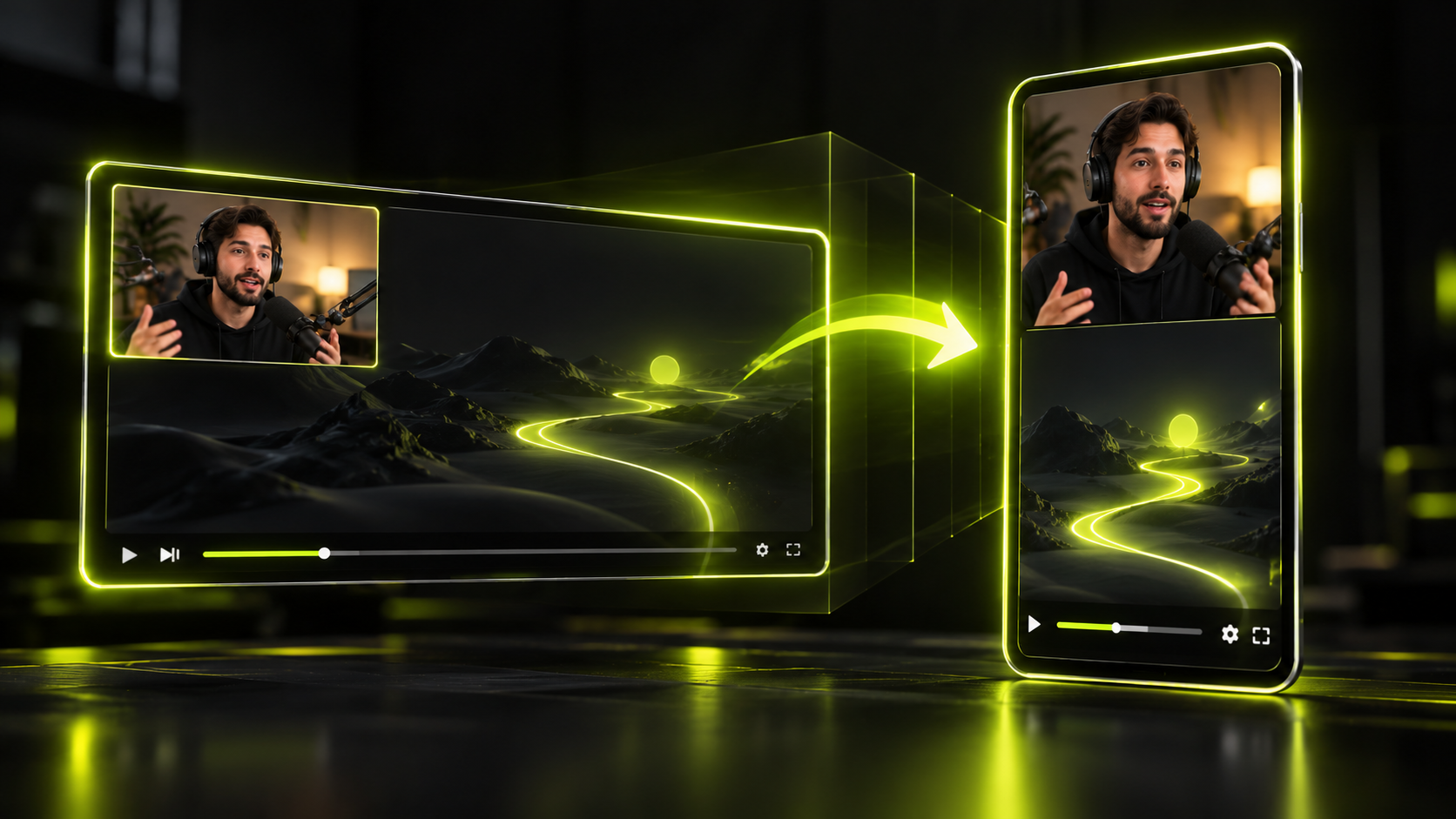
To clip a stream into highlight shorts, save the full broadcast first, then find the peaks. Cut each clip so it starts just before the payoff. Frame your facecam and the gameplay for 9:16, add captions, and post. Order matters here, because a stream archive can expire or never get saved at all.
This guide covers Twitch and YouTube, with notes on Kick where its rules differ. The cutting, framing and captioning steps work the same on any platform. Think of it as the streamer version of our complete workflow for turning long videos into shorts.
The short version
- Download or confirm your VOD right after the stream. Twitch and Kick archives expire, and YouTube may not capture streams past 12 hours.
- Find peaks during and right after the stream: stream markers, chat spikes, viewer clips and your own timestamp notes.
- Twitch makes vertical clips. YouTube's Studio Clips and Shorts tool can turn your archive into Shorts, and Remix likely can too. Use an editor for tighter cuts.
- Start the clip a beat before the payoff and end after the reaction. Skip the run-up.
- Split layouts with facecam on top and gameplay below usually suit highlights.
- Clipping someone else's stream needs their permission. A clip button isn't a license to repost.
Save the VOD before it disappears
Your first job after a stream is making sure a full copy exists. Each platform keeps archives under its own rules, and some of those windows are short.
YouTube
YouTube Help on live stream archives says streams "less than 12 hours long" archive automatically. Past 12 hours, a stream "may not be captured at all." You'll find your archives in Studio → Content → Live. If you run marathon streams, we suggest splitting them into separate broadcasts under 12 hours each.
Twitch
Twitch keeps past broadcasts for a limited time that depends on your account type. Turn on storing past broadcasts in your settings. Then download each one before it expires. Twitch Help lists the current storage windows, so check them for your account.
Kick
According to Kick Help on stream replays, non-verified channels keep replays for 7 days. Verified channels keep them for up to 30 days. A week goes fast, so download the replay soon after you go offline.
Find the peaks: markers, chat and your own notes
The quickest way to find highlights is to flag them while you're live. Scrubbing a four-hour stream from start to finish is the slow path.
Use every signal you have:
- Stream markers. Twitch's stream markers let you flag a moment during the broadcast and jump back to it later. Check Twitch Help for the current ways to add one.
- Chat spikes. Treat a sudden burst of messages or emotes as a lead worth checking in the chat replay.
- Viewer clips. Clips your viewers made show which moments they cared about. On Twitch, you control who can clip your channel.
- Your own notes. Keep a notepad open, or ask a mod to log timestamps with a few words each.
On YouTube, clipping is "turned on by default," per YouTube Help on Clips. On Kick, any logged-in viewer who isn't chat-banned can clip, with a 60-second cooldown, says Kick Help on clips.
A note log might look like this (an illustration, not a real stream):
- 1:12:40 lost the bet, chat spammed laughing emotes
- 2:05:15 clutch 1v3, mod clipped it
- 3:31:00 worst teammate story, good standalone
Next, get the whole VOD ranked so you can compare it with your notes. In Hookspring:
- Go to Create → Long video → Find clips.
- Upload the VOD file you downloaded, or paste the YouTube link to your archive.
- Check the credit cost, which is shown before you start, and confirm.
- Open the Review list and sort by score. Each clip is ranked by its opening 1 to 3 seconds, with a plain-English reason.
Read the ranked list next to your notes. The score ranks how each clip opens. It can't know which inside joke your community loves, so trust your notes on that. If long stretches of your stream have no talking, see our guide to clipping gaming videos when nobody is talking.
Use the platform's own vertical tools
The built-in tools on both platforms can turn a stream moment into a vertical clip. They're fast for a single moment. Use an editor when you need tighter cuts, your own captions or a custom layout.
Twitch: portrait clips, Dual Format and Stream Recaps
In 2024, the Twitch blog on mobile clips said Twitch auto-generates "a portrait version of every Clip." You can adjust it with Edit Layout or the scissor icon in Clips Manager. The same post announced direct posting to TikTok and YouTube as planned. Check Clips Manager to see what's live for you now.
In June 2026, Twitch added Dual Format. It gives you "both a horizontal and a vertical version" of Clips and VODs, and it's available to all streamers.
Twitch also builds Stream Recaps automatically after a stream, from the clips made during it. You can edit a recap in Creator Dashboard → Stream Summary. It's a quick way to see which moments got clipped.
YouTube: Clips, and Clips and Shorts
YouTube Clips run "a maximum of 60 seconds or minimum of 5 seconds." You can't clip a live stream without DVR, or beyond the DVR window. Clips are public, and the source owner can turn a whole clip into a Short.
For your own archive, the Studio Clips and Shorts tool is a good fit. Open Content, pick the video, then choose Create clip or Short. The source video becomes the Short's related video automatically.
There's also Remix, where Edit into a Short uses up to 60 seconds of your own public long-form upload. An archived stream is a regular video on your channel, so it should work there too. That's our reading, not something YouTube documents.
Cut the reaction, not the run-up
Build each highlight around the payoff and your reaction to it. The minutes before that are usually context a scrolling viewer can skip.
Start a beat before the payoff and keep the reaction until it peaks, then end. If the setup matters, put it in an on-screen line instead of minutes of footage.
Take a made-up example: a boss fight that runs four minutes. The win lands at 3:50, and you yell for 15 seconds after. A tight clip starts at 3:44 with "1 HP left" on screen and ends at 4:05.
That's about 20 seconds instead of four minutes.
To make that cut in the Hookspring editor:
- Drag the timeline handles to start the clip just before the payoff.
- Split and delete any dead air between the payoff and the reaction.
- To drop a line of talk, go to Editor → Captions and click ✂ on that line.
- Add the setup as text with Editor toolbar → Text.
Frame facecam and gameplay for 9:16
A split layout usually works best: facecam on top, gameplay below. That keeps both the action and your reaction on screen. Pick the layout from what the moment needs:
| What's in the clip | Layout to use |
|---|---|
| A play plus your reaction | Split, two parts: facecam top, gameplay bottom |
| A story or Just Chatting moment | Single frame, fill, focused on your face |
| Pure gameplay, no reaction needed | Single frame, fill, focused on the action |
| A wide game UI you can't crop | Fit with a blurred background |
In Hookspring:
- Go to Editor → Focus → Layout and pick a two-part split. Splits go up to four parts.
- Turn on Focus part in the Layout panel, then drag the focus box inside each part. Put your facecam on top and the action below.
- Play the clip once and confirm nothing important drifts out of frame.
For single-frame clips, drag the focus box onto the subject on stage, and it stays framed and tracked. For more ways to reframe wide footage, read how to convert horizontal video to vertical.
Caption the hype moments
Caption every clip, and give the loud moments extra care. Shouting, laughter and game audio can blur words, so read those lines yourself before export.
Here's the caption pass in Hookspring:
- Open the Captions tab in the editor and pick a template: Hook, Minimal or News.
- Read every line. Captions are word-timed and editable line by line.
- Fix game names, player names and community in-jokes.
- Where the moment has no words, add context with Editor toolbar → Text.
When you're done, go to Editor → Export → Download. Choose 720p or 1080p for a vertical MP4 with captions burned in and no watermark.
Our guide to captions for shorts covers template choice, size, safe zones and timing.
Length limits by platform
Clip tools and upload limits differ, so check where your clip will end up before you cut it.
| Tool | Length |
|---|---|
| YouTube Clips | 5 to 60 seconds |
| YouTube Remix, Edit into a Short | Up to 60 seconds of your own video |
| YouTube Shorts upload | Up to 3 minutes |
| Kick clips | 10 to 180 seconds |
| Twitch clips | Check the clip tool in the app |
The Shorts limit comes from YouTube Help on Shorts length. Kick also lets you download clips as .mp4 files. We couldn't confirm Twitch's current clip limits, so check them in the app.
Clipping someone else's stream
Get the streamer's permission first. A platform's clip button makes a clip on that platform. In our reading, it doesn't give you the right to download and repost elsewhere.
Keep these rules in mind:
- Credit isn't permission. On fair use, YouTube Help says "There aren't any magic words" that make reuse safe.
- Strikes add up. YouTube's copyright strike rules say "3 copyright strikes in 90 days" lead to channel termination.
- Permission isn't monetization. Under YouTube's monetization policies, reused content can be ineligible for monetization even with permission.
Some streamers run clipping programs with set terms. Our explainer on what clipping is and how clipping programs work covers how they run. For permission and fair use, read is clipping legal? This is general information, not legal advice.
How often to post stream clips
Post at a pace you can keep after every stream, rather than in bursts. Our guide on how often to post Shorts helps you pick a cadence.
Keep unused highlights as a backlog for weeks when you can't stream. If you also run a talk show, the same loop works for turning a podcast into shorts.
In Hookspring, credits pay only for transcription and hook scoring, priced by video length. Editing, captions and export are unlimited, as the pricing page explains.
FAQ
Can I turn a Twitch clip into a YouTube Short?
Yes, if it's your stream. Twitch makes a portrait version of every clip, and Dual Format adds vertical VODs. Get the clip from Clips Manager, or edit from your downloaded VOD, then upload the result as a Short of up to 3 minutes.
How long do Twitch VODs stay up?
Twitch keeps past broadcasts for a limited time that depends on your account type. Turn on storing past broadcasts, check Twitch Help for your window, and download each VOD before it expires.
How long can a YouTube or Kick clip be?
YouTube Clips run 5 to 60 seconds. Kick clips run 10 to 180 seconds. A YouTube Short you upload can run up to 3 minutes.
Can I clip someone else's stream?
Only with permission, or through the streamer's clipping program. Credit alone doesn't count, and copyright strikes can end a YouTube channel. This isn't legal advice.
How do I make a vertical clip that shows my facecam?
Use a two-part split layout. Put the facecam in the top part and the gameplay in the bottom part, then play it through to check both stay in frame.
Written and maintained by the Hookspring team. Spot an error or something out of date? Email hello@hookspring.com.
Sources
- Creating and sharing clips for mobile just got easier, Twitch Blog, retrieved 2026-10-18
- Introducing Dual Format and 2K streaming on Twitch, Twitch Blog, retrieved 2026-10-18
- Stream-O-Ween and Stream Recaps, Twitch Blog, retrieved 2026-10-18
- Live stream archives, YouTube Help, retrieved 2026-10-18
- Create clips, YouTube Help, retrieved 2026-10-18
- Clips and Shorts tool in YouTube Studio, YouTube Help, retrieved 2026-10-18
- Edit into a Short with Remix, YouTube Help, retrieved 2026-10-18
- Shorts length, YouTube Help, retrieved 2026-10-18
- Fair use on YouTube, YouTube Help, retrieved 2026-10-18
- Copyright strike basics, YouTube Help, retrieved 2026-10-18
- YouTube channel monetization policies, YouTube Help, retrieved 2026-10-18
- How to create clips on Kick, Kick Help Center, retrieved 2026-10-18
- Kick stream replays (VODs), Kick Help Center, retrieved 2026-10-18